
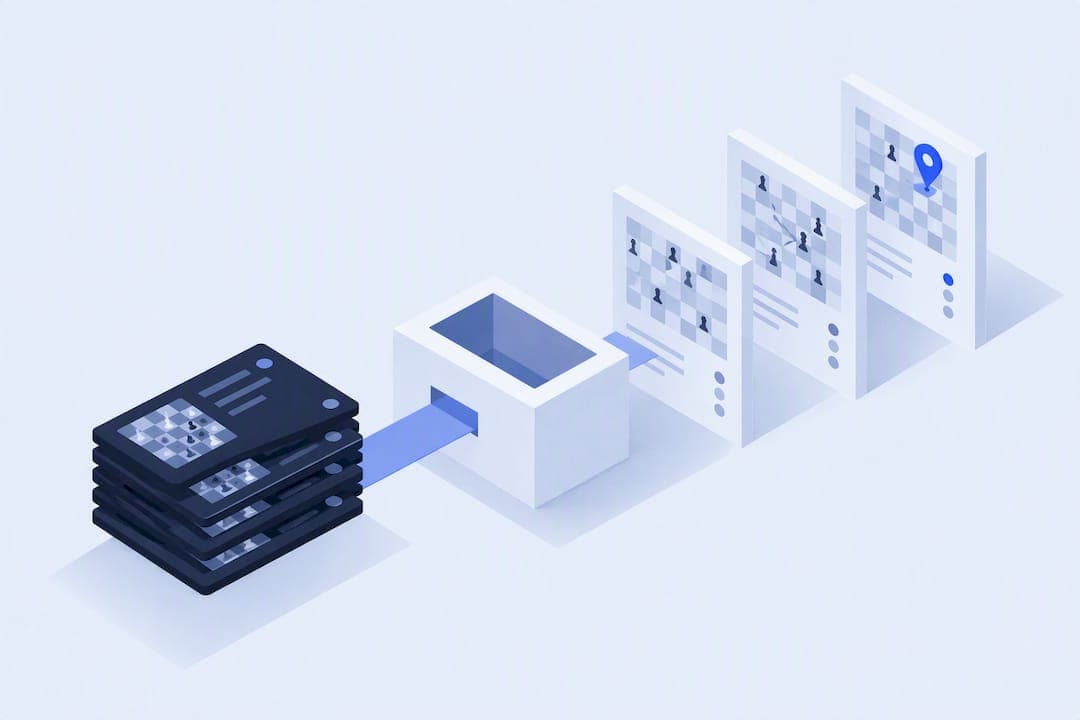
Export your Lichess games as PGN, single or bulk, then paste or upload that file into an external analyzer and run engine analysis. Most tools also let you skip the file entirely by fetching games directly through a username or the Lichess API. Once the games load, the analyzer aggregates your results into trends: repeated opening mistakes, shaky endgames, and patterns you would never spot game by game.
TL;DR:
- Use raw PGN for most external analysis tools, as it contains only move data, while annotated PGN includes engine comments and clock times.
- Bulk export via the profile page is quicker and better suited for analyzing long game histories, especially when combined with API automation.
- Confirm your game type and privacy status before exporting, as private matches require manual export and some private data may not be included automatically.
- Import into analysis tools involves pasting or uploading PGN files, then selecting your color and starting engine analysis with appropriate depth settings.
- Analyzing multiple games over time helps identify recurring mistakes and build a broad improvement plan rather than focusing on individual inaccuracies.
Table of Contents
- What You Need Before You Start: File Types, Privacy, and Metadata
- Exporting PGN From Lichess: Single and Bulk Methods
- Importing Into an External Analyzer: The Universal Steps
- Study Workflow: Turning Imported Games Into Real Improvement
- Fixing Common Import Problems
- How Nexa Chess Handles Lichess Imports
- A Coach's View on Realistic Expectations
- Try Importing a Game Into Nexa Chess Today
- Sources
- FAQ
What You Need Before You Start: File Types, Privacy, and Metadata
Before you touch the export button, decide what you actually need out of the file. Lichess gives you two flavors of PGN, and picking the wrong one wastes a step later.
- Annotated PGN carries engine evaluations, move comments, and clock times baked into the file, useful if you want a record of Lichess's own analysis alongside the moves.
- Raw PGN strips that out and leaves clean move data, which most external analyzers prefer since they run their own engine pass anyway.
- Metadata tags (event, date, player names, ratings, time control) travel with both formats, though clocks and evals only appear if you request them through the export options or API flags.
- Privacy check: confirm whether the games you're exporting are from public or private matches, and read what the analyzer stores once you upload. A tool that fetches games by username pulls whatever Lichess marks as public, so private games need manual export.
Get this sorted first and the actual import takes about thirty seconds.
Exporting PGN From Lichess: Single and Bulk Methods
For one game, open it and click into the Analysis board. Under the board, find the Share & export tab (sometimes labeled FEN & PGN) and you'll see your options laid out plainly.
- Click Download annotated if you want Lichess's built-in evaluations and comments included.
- Click Download raw for a clean file with no embedded analysis, ideal for tools that run their own Stockfish pass.
- Or just copy the PGN straight to your clipboard if you're pasting it into a web tool instead of uploading a file.
That single-game flow is confirmed directly on the Lichess feedback forum, and it hasn't changed in years because it doesn't need to.
Bulk export works differently. Head to your profile page and look for the Export games control, usually near the top right of your game list. That lets you download a batch of games as one .pgn file instead of clicking into each one individually, a lifesaver if you're trying to analyze three months of blitz games at once rather than one lucky win.
Pro Tip: Grab raw PGN for bulk exports unless you specifically want Lichess's own commentary preserved. Annotated files get bulky fast, and most external analyzers ignore the embedded evals anyway since they're about to generate fresh ones.
If you want this automated instead of clicking through the interface every week, the Lichess API exposes the same export functionality with query parameters for moves, tags, clocks, and evals. That's the route for anyone who wants a script pulling fresh games on a schedule rather than doing it by hand.
Importing Into an External Analyzer: The Universal Steps
Every analyzer handles this a little differently in the details, but the core workflow is close to identical across tools, whether you're using a dedicated platform or software like ChessBase, SCID, or ChessX.
- Look for a Paste PGN text box if you copied the game to your clipboard, or an Upload .pgn button if you're working from a downloaded file.
- If your file contains multiple games, most tools automatically detect the count and queue them for background analysis rather than making you wait on each one.
- Confirm which side is you. Some platforms read this from the PGN tags automatically; others ask you to type your username so they can consolidate every game under one profile, a detail the analysis workflows documented on GitHub point out as a common friction point in bulk imports.
- Start the engine analysis pass. If the platform exposes settings for depth or thread count, deeper settings catch more subtle mistakes but take longer, so match the setting to how many games you're running at once.
Some tools skip the file step entirely and let you fetch games by username through the Lichess API, pulling your recent history without you touching an export button at all. That convenience only works for Lichess accounts, so Chess.com games still need the manual PGN route on most platforms.
Study Workflow: Turning Imported Games Into Real Improvement
Importing a hundred games does nothing if you just skim the engine's red arrows and move on. The players who actually improve treat the import as the start of a process, not the end of one.
- Review the game yourself first, before the engine touches it. Write down what you thought your plan was at each critical juncture and which candidate moves you considered.
- Run engine analysis second, using it to verify or challenge your own read on the position rather than as your first opinion. This order matters more than most players realize.
- Pick one or two decisive moments per game, not every inaccuracy the engine flags. Trying to fix every 0.3-pawn slip burns energy without building any lasting pattern recognition, a point House of Staunton's coaching guidance makes directly.
- Aggregate the errors across your whole batch. One blown endgame is a blip. Five blown rook endgames in six weeks is a weekly practice assignment.
Pro Tip: Set a standing weekly slot to review your aggregated mistake list rather than analyzing games the night you play them. Fresh losses trigger emotional review, not honest review.
Fixing Common Import Problems
Most import failures trace back to one of a few predictable causes, and none of them require starting over.
- Unreadable file: open the .pgn in a plain text editor, or rename the extension to .txt if your system won't recognize it, since PGN is just plain text underneath regardless of the file extension.
- Study export acting strange: Lichess studies sometimes export differently than regular games. If the download button fails, copy the displayed PGN text directly from the study page instead.
- Missing clocks or evals: the analyzer needs data your export didn't include. Go back and use the download or API flags that specifically request clocks, evaluations, or tags.
- Wrong player color detected: manually enter your username or select your color during import rather than trusting auto-detection, especially in games where both players share a similar name format.
How Nexa Chess Handles Lichess Imports
Nexa Chess takes the PGN you export from Lichess (or Chess.com) and runs it through Stockfish, breaking the results down by opening, middlegame, and endgame rather than handing you one flat accuracy number. That phase split matters because a player who blunders endgames but plays clean middlegames needs a completely different practice plan than one who loses the thread in complicated middlegame positions.
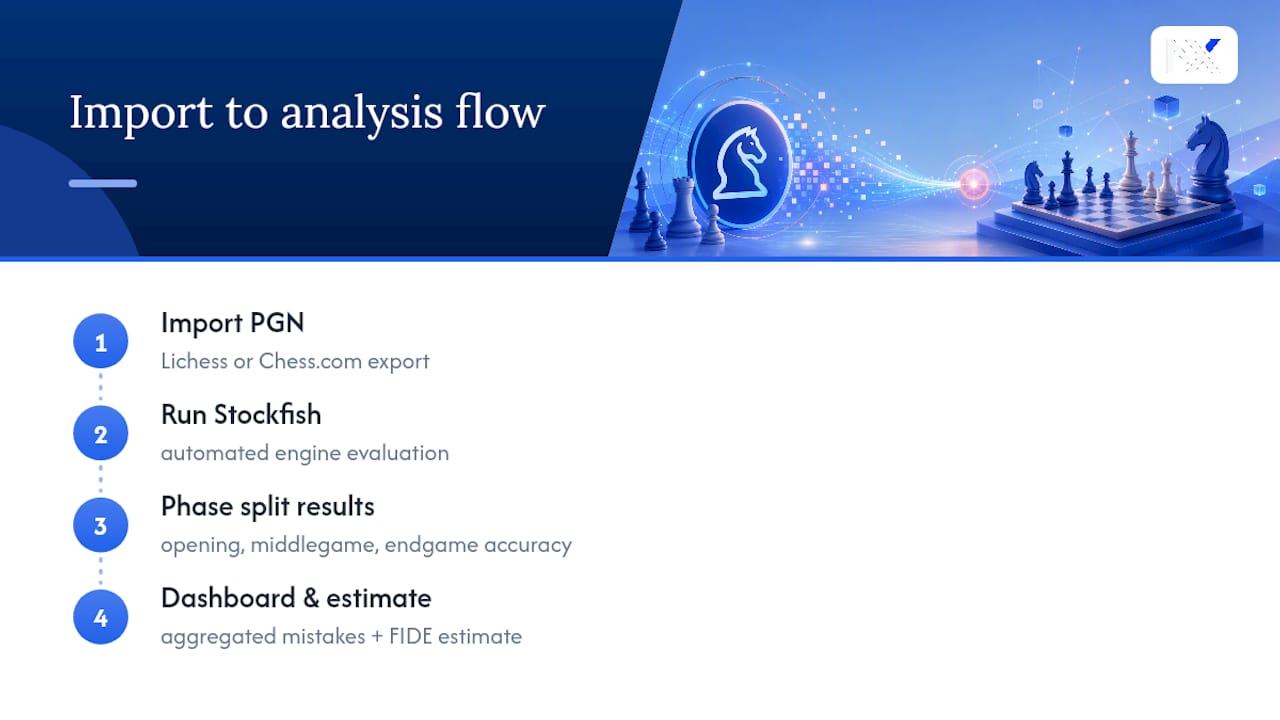
The platform consolidates every imported game into one dashboard, so instead of reviewing games one at a time, you see recurring mistakes surface across your entire history. It also generates a virtual FIDE rating estimate based on your imported games, giving you a rough sense of how your online strength compares to over-the-board ratings, a question most online players ask but rarely get a real answer to.
If you're already importing games manually into a spreadsheet or tracking mistakes in a notebook, an aggregated view like this replaces that manual tracking with something that updates every time you import a new batch.
A Coach's View on Realistic Expectations
The best study sessions I've seen described combine manual review with a targeted engine check, never one alone. Passive engine consumption, just scrolling through red evaluation bars, teaches almost nothing on its own.
Ask "why" the engine prefers a move before accepting it. That question builds the kind of reproducible thinking you can use at the board when no engine is running. Track your weekly trend instead of chasing perfect move-for-move accuracy in any single game.
— carles
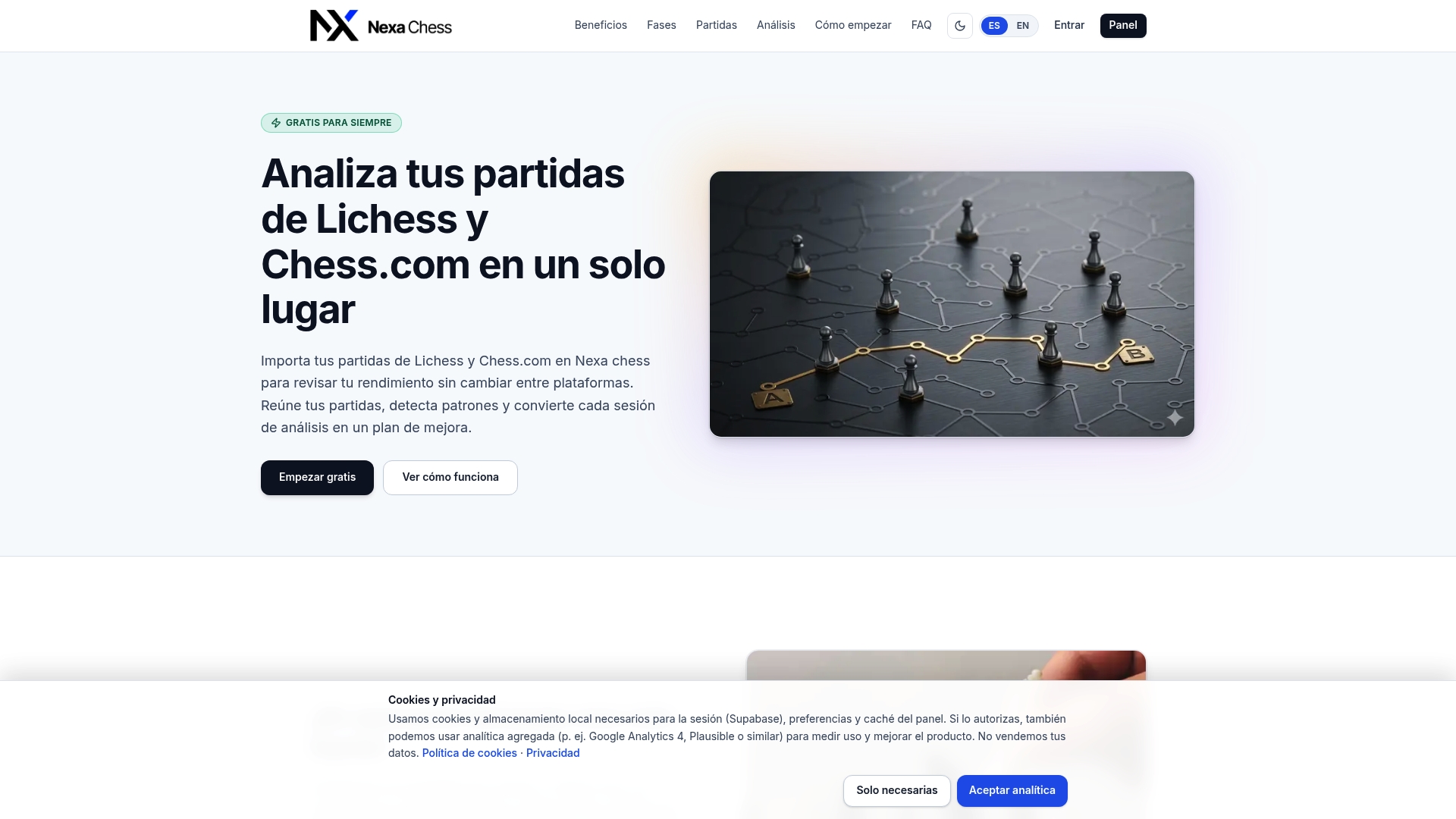
Try Importing a Game Into Nexa Chess Today
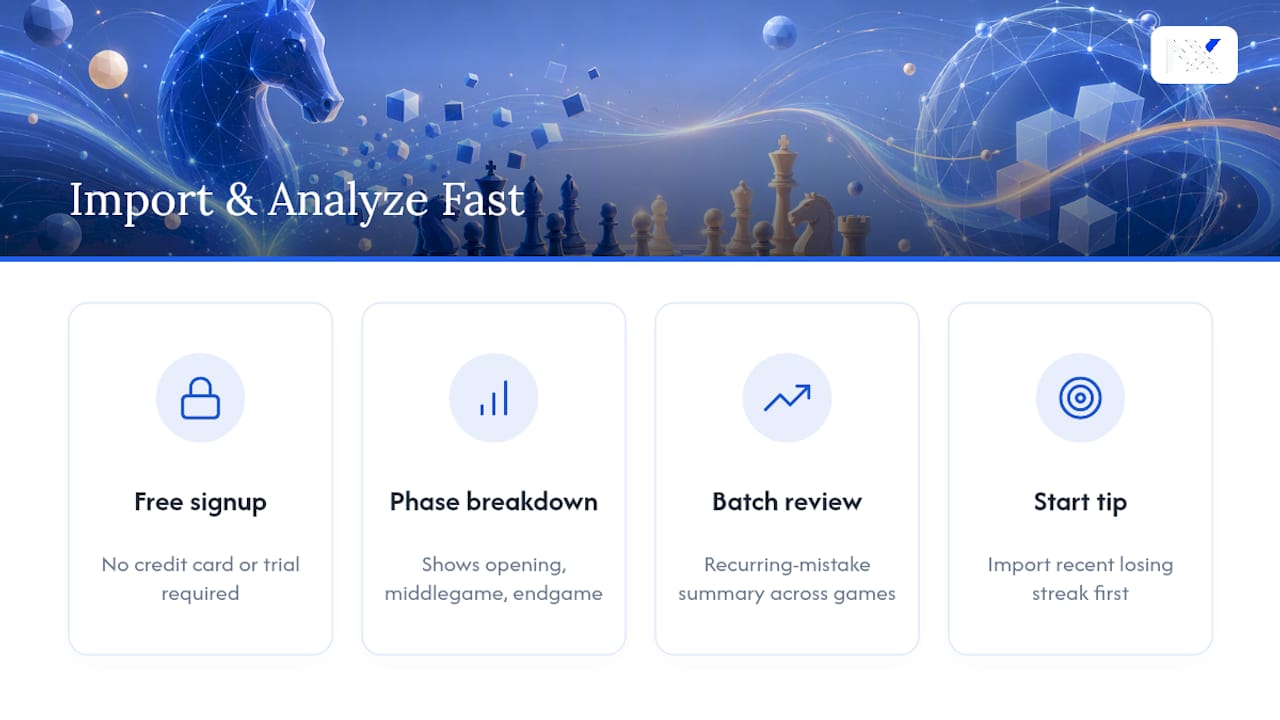
The platform offers free access without requiring credit card information or trial periods. That matters if you've been putting off serious game review because every other analysis tool wants a subscription before you've even seen whether the insights are useful.
Import one game from your Lichess account and you'll see the phase breakdown immediately: where your opening prep held up, where the middlegame got shaky, and whether your endgame technique is quietly costing you points you never noticed. Run a batch of ten or twenty games and the recurring-mistake summary starts doing the work a coach would normally charge for, flagging the same tactical pattern or opening gap showing up across multiple losses.
Head to Nexachess to create a free account and import your first Lichess game. Give it your most recent losing streak first. That's usually where the clearest patterns show up.
Sources
The Lichess feedback forum covers the UI steps for downloading or copying PGN in detail. The Lichess API specification documents programmatic export for anyone automating imports. House of Staunton's coaching blog covers focused review habits that pair well with any import workflow.
FAQ
How Do I Export a Single Game From Lichess?
Open the game, go to the Analysis board, and use the Share & export (or FEN & PGN) tab. From there you can download annotated or raw PGN, or copy the text directly to your clipboard.
Can I Export Multiple Lichess Games at Once?
Yes. Your Lichess profile has an Export games control that bundles a batch of games into a single .pgn file rather than making you download them one at a time.
Should I Use Annotated or Raw PGN for Import?
Raw PGN is usually the better choice for external analyzers since most tools run their own engine pass and don't need Lichess's embedded evaluations. Annotated PGN is worth keeping only if you specifically want Lichess's own comments preserved alongside the moves.
What If My PGN File Won't Open?
Open it in a plain text editor or rename the file extension to .txt, since PGN is plain text underneath regardless of what extension it carries. If a study export specifically fails to download, copy the PGN text shown on the page instead.
Does Nexa Chess Cost Anything to Import Games?
Nexa Chess is currently free to use, listed as Gratis para siempre on the platform's site, with no payment required to import Lichess or Chess.com games. You can start importing and see phase-based analysis without entering billing details.
Can I Estimate My FIDE Rating From Lichess Games?
Some platforms, including Nexa Chess, generate a virtual FIDE rating estimate based on the strength of moves in your imported online games. It's a rough comparison rather than an official rating, but it gives online players a reference point they otherwise don't have.